Single & continuous barcode scanning
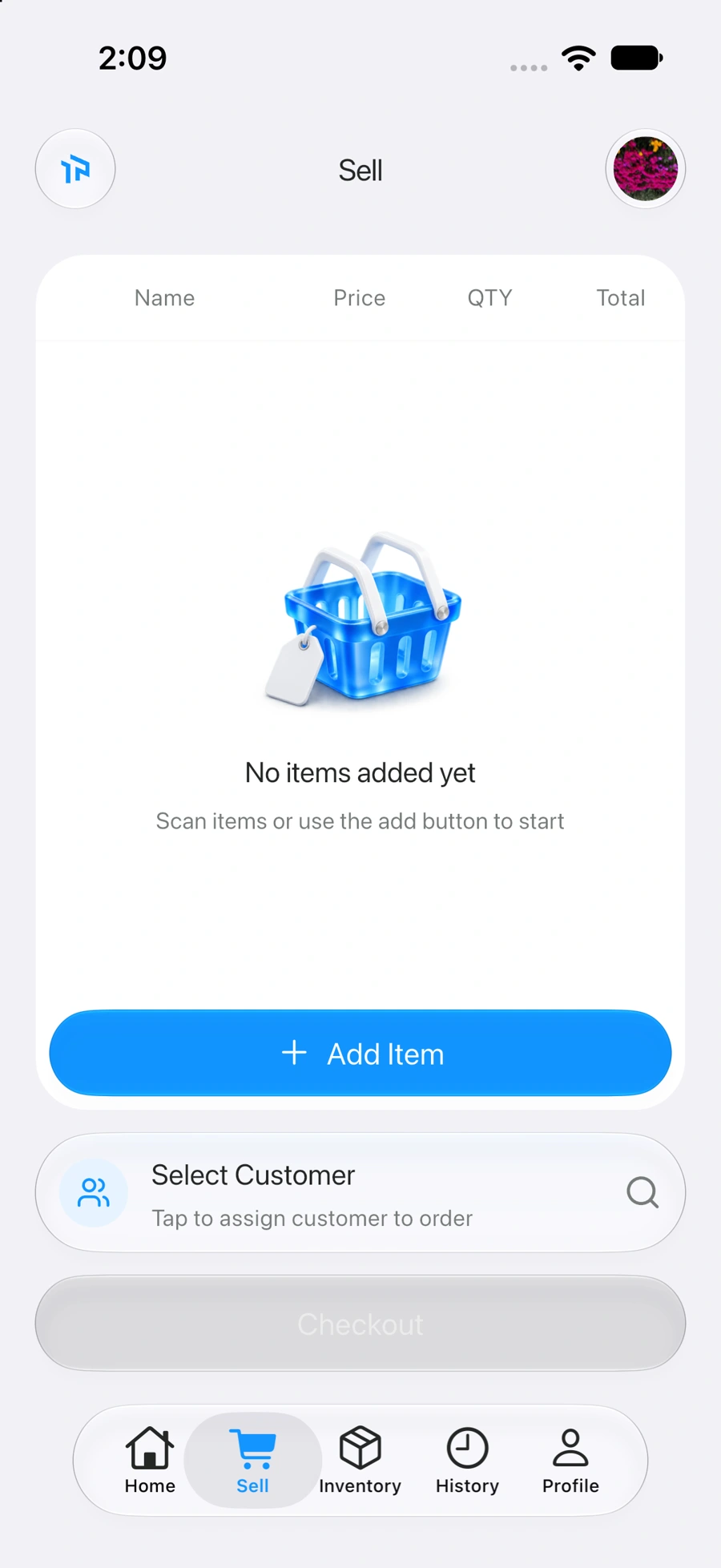
Scan one item at a time or keep scanning a basket; manual search stays available.
The essentials of your store, connected in one mobile POS. Built for the everyday moments that make service feel personal.
Start your storeActual app screens. Features depend on your business configuration.

REGULAR POS / TaPAY
Compare a typical fixed-counter setup with TaPAY’s mobile-first approach. See what changes for your team—and for the customer.
Swipe the table to compare both experiences.
| What matters | Regular POSTypical fixed-counter setup |  TaPAYA mobile-first retail experience TaPAYA mobile-first retail experience |
|---|---|---|
| Where you sell | A fixed till or checkout station is the main point of service. | Serve customers from your phone, beside the display, fitting room or shop floor. |
| Checkout experience | The customer usually goes to the counter to finish the purchase. | Bring item selection, customer records and invoicing to the customer. |
| Speed & flow | Walking to a counter and waiting for an available till can add steps. | Scan and prepare the sale where service happens, reducing counter handoffs. Actual checkout time varies. |
| Devices & setup | Often uses a till, computer and peripherals; requirements vary by system. | Use the iOS or Android app with a configured business account and compatible connected systems. |
| Cashless payments | Card terminals and payment integrations depend on the chosen POS and provider. | Share hosted payment links on enabled merchant accounts. Provider setup and approval are required. |
| Invoices & receipts | Printed receipts are common; digital options depend on the software. | Share digital invoice links, export PDFs and use configured sharing options. |
| Customer connection | Customer lookup is usually performed at the till; capabilities vary. | Find a customer by phone or customer QR, or add a customer within the mobile sales flow. |
| Stock & sales visibility | Inventory and reporting depend on the POS software and its integrations. | Look up connected stock, review sales dashboards and use permitted inventory workflows from your phone. |
| Language experience | Languages and right-to-left support vary between products. | English and Arabic, including a right-to-left Arabic interface. |
| Connectivity | Online and offline capabilities depend on the chosen system. | An internet connection and an enabled account are required for connected operations. |
| Subscription & costs | Hardware, licences and service costs vary by vendor and setup. | 199 JOD per year for TaPAY. Payment-provider services follow separate merchant terms. |
Indicative workflow comparison. Regular POS products may offer mobile, digital and other capabilities; features vary by vendor and configuration. Speed is not a timed benchmark and depends on connectivity, basket size, account setup and payment provider.
A clearer price for your next move.199 JOD / year
Explore the TaPAY planA closer look / 01

Scan one item at a time or keep scanning a basket; manual search stays available.
Find by item name or code and inspect images, descriptions, SKU, selling price and stock.
Merge repeated scans, adjust quantities, remove items and review stock availability.
Choose or replace the customer before checkout, with each saved account keeping its own cart and customer.
Check items, quantities and totals in the order review before creating the invoice.
A closer look / 02

Record enabled methods such as Card, CliQ, Cash or Other. Recording a method does not itself process or settle a payment.
Allocate the total across available methods, with a check that the amounts match the invoice total.
Attach a receipt using the camera or photo library and record a payment reference.
For enabled merchant configurations, create or share a hosted link and check its status. Provider and merchant approval are required.
Share an invoice link through the device share sheet, export a PDF, and use configured WhatsApp sharing where available.
Review payment status, references, line items, net totals, recorded taxes and discounts; cancel eligible invoices after confirmation.
A closer look / 03

Find a customer by phone number and choose the matching record for the sale.
Use the camera to scan a customer QR when the business provides a supported customer code.
Add the customer details requested by the connected business, including contact and address fields.
Switch between customer lookup, creation and the current cart as part of the same sales journey.
A closer look / 04

Search and filter transfer and reconciliation history, inspect details and see Draft, Submitted or Cancelled status. Transfer review is read-only in TaPAY.
Scan an item barcode or enter an item code, then compare system quantity with the physical count.
Count within allowed warehouses and review posting date, time, stock unit and valuation.
Provide batch or serial numbers where required by the ERP item configuration.
Save an ERPNext draft, review or edit eligible drafts, then confirm submission. Submission changes stock and accounting records.
Refresh document status and respect account permissions before viewing or changing inventory.
A closer look / 05

Switch reporting periods to follow the connected account’s sales activity.
See the sales total, order count and average ticket for the selected period.
Use chart views and payment breakdowns to understand how recorded sales are distributed.
Search past invoices, load more results, inspect posting times and open invoice details.
A closer look / 06

Sign in with the business username and password after the account has been configured for TaPAY.
Add, switch or remove saved accounts on the device; each account keeps its own cart and selected customer.
Select an available salesperson with required verification, and change the warehouse where account policy allows.
Choose English or Arabic, light, dark or system appearance, and single or continuous scan preferences.
View account and configured business details, and update the profile photo from camera or library.
An interface that feels familiar, with bilingual support and a right-to-left Arabic experience.
See it in Arabic